

When a website is not getting enough Google traffic, many owners start by changing keywords, rewriting titles, or publishing more content.
That can be useful, but it may not address the real problem.
Before making small SEO improvements, first check whether Google can find, crawl, understand, and index your important pages. Improving a meta description will not help much if the service page itself cannot appear in Google’s index.
That is the purpose of an SEO audit.
An SEO audit reviews the technical setup, performance, content, links, and search data of a website so you can identify what may be limiting its visibility.
This SEO audit checklist for beginners walks you through ten practical steps using mostly free tools such as Google Search Console, PageSpeed Insights, and your browser.
If you are completely new to search optimization, our introductory SEO guide covering SEO basics for beginners can help you understand the fundamentals first.
The goal is simple: find the problems that matter most, record the evidence, and fix them in the right order.
Step 1: Create Your SEO Audit Spreadsheet
Start with a spreadsheet before changing anything.
Create one row for each important page and include columns for:
- URL
- page purpose
- indexing status
- page title
- meta description
- main heading
- content condition
- internal-link issues
- speed issues
- clicks and impressions
- priority
- recommended action
Do not worry about auditing every URL immediately. Start with pages that support business goals, such as your homepage, main service pages, location pages, important blog posts, or admissions pages.
For example, a dental clinic might audit its homepage, implants page, root canal page, location page, and appointment page before reviewing dozens of older articles.
Your spreadsheet turns vague concerns into specific findings. Instead of saying “SEO seems weak,” you may discover that two key pages are not indexed and three service pages use almost identical titles.
Collect evidence before making fixes. You may discover one sitewide issue that matters more than dozens of small page-level warnings.
Step 2: Check Page Indexing in Google Search Console
Next, find out whether Google has indexed your important pages.
Open Google Search Console and use URL Inspection to check your homepage, core service pages, location pages, recent articles, and other high-value URLs. Search Console provides tools for monitoring search performance and investigating indexing issues.
If an important page is not indexed, investigate why before spending time adjusting keywords or descriptions.
Remember that crawling and indexing are different. Crawling is Google’s process of accessing pages; indexing involves processing information so a page may become eligible to appear in Search.
Not every non-indexed URL is a problem. Login pages, duplicate URLs, filtered pages, and other utility content may not need search visibility.
If Search Console is unfamiliar, our Search Console tutorial on Google Search Console for beginners explains the key reports.
Check pages connected to enquiries, bookings, sales, or admissions first. An indexing problem on one valuable page can outweigh dozens of minor warnings elsewhere.
Step 3: Review Technical Signals: Robots.txt, Noindex, Sitemap and Canonicals
When an important page has crawling or indexing problems, review the signals that control how Google accesses and interprets URLs.
Robots.txt controls crawler access. It should not be treated as a reliable way to remove a URL from Google’s index because Google may still know that a blocked URL exists.
A noindex directive tells Google not to index a page. Google needs crawler access to see that directive, so blocking the page in robots.txt can prevent Google from reading it.
Your XML sitemap helps search engines discover important URLs, but submitting a page in a sitemap does not guarantee that Google will crawl or index it.
A canonical indicates the preferred URL when several pages contain duplicate or very similar content. Google recommends keeping canonical signals consistent rather than pointing different methods toward different URLs.
Imagine a clinic publishes a new treatment page but accidentally leaves a noindex setting from development. The page works perfectly for visitors, yet Google has been instructed not to index it.
Do not change technical directives unless you understand their purpose. A wrong sitewide setting can affect hundreds of pages at once.
Step 4: Audit Website Speed & Mobile Core Web Vitals
Once important pages can be accessed and indexed, review performance.
Run several page types through PageSpeed Insights, including your homepage, a service page, a blog post, and a location or category page.
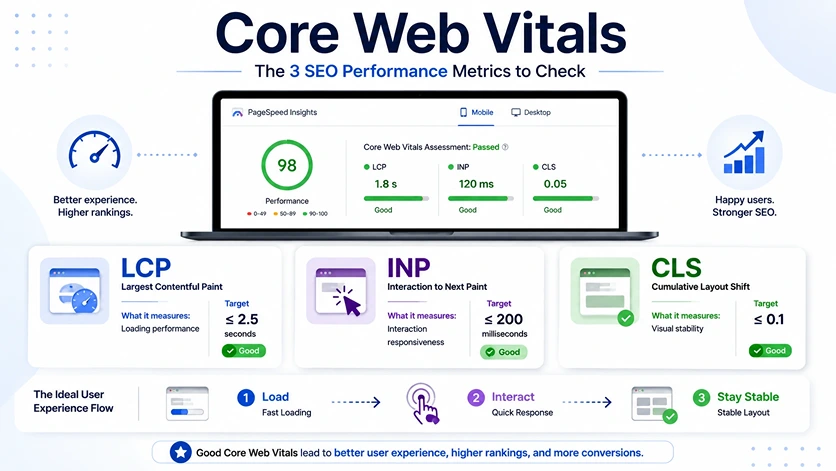
Google’s Core Web Vitals focus on loading performance, responsiveness, and visual stability.
Metric | Target | What It Measures |
LCP | 2.5 seconds or less | How quickly the main visible content loads |
INP | 200 milliseconds or less | How quickly the page responds to interactions |
CLS | 0.1 or less | How stable the layout remains while loading |
Look for oversized images, slow scripts, delayed interactions, or content that jumps around as the page loads.
Do not make a PageSpeed score of 100 your SEO goal. Google recommends good Core Web Vitals, but good scores alone do not guarantee top search rankings.
For practical improvements, see our website performance guide on how to improve website speed.
Test one example from each major page template. A single template issue may be slowing every service or location page.
Step 5: Review Titles & Meta Descriptions
Now review the information users often see in search results.
Each important page should have a clear, specific title that accurately describes its purpose.
For example:
Weak: Services | ABC Company
Better: Emergency Plumbing Services in Kochi | ABC Company
Avoid using the same generic title across several services.
Google automatically generates title links and can use the HTML title, headings, page content, and other signals rather than displaying your title exactly as written.
Meta descriptions should briefly explain what the page offers and why it may be useful. Google may use your written description, but it can instead generate a snippet from the page when that better fits the search query.
Read the title and description together. If they do not clearly tell a potential visitor what the page offers, rewrite them for clarity rather than keyword density.
Step 6: Audit Headings, URLs & Keyword Intent
A visitor should understand the purpose of an important page within a few seconds.
Review the main heading, supporting subheadings, URL, and overall topic focus.
Ask:
- Does the H1 clearly describe the page?
- Do subheadings organize the information logically?
- Is the URL readable?
- Does the page answer one clear search need?
- Are keywords used naturally?
A dental clinic should usually have focused pages for services such as implants, whitening, and root canal treatment instead of one page trying to target every dental term.
If you are unsure which search terms belong on a page, our beginner keyword research guide explains how to do keyword research without stuffing phrases unnaturally into the copy.
Google recommends using words people search for in prominent places while also warning against keyword stuffing.
Write a one-sentence purpose for each page. If you cannot clearly explain whom the page helps and what it answers, its search intent may be too broad.
Step 7: Evaluate Content Quality & Accuracy
An SEO content audit should determine whether each page is useful, accurate, current, and different enough from other pages on the website.
Give each important page one status:
- Keep — useful and current
- Improve — valuable but incomplete
- Update — useful but outdated
- Merge — overlaps heavily with another page
- Remove or redirect — no longer serves a useful purpose
Do not judge content by word count alone.
For example, a college may have a course page that still receives visitors but lists an outdated eligibility requirement. Correcting that information is more important than adding another 1,000 words.
Ask whether the page solves the visitor’s problem, contains accurate information, offers enough detail, and still deserves to exist as a separate URL.
Review older pages that still receive traffic first. Outdated high-visibility content can create both SEO and trust problems.
Step 8: Audit Internal Links & Image Alt Text
Internal links connect related areas of your website.
Google uses links to discover pages and as signals for understanding relevance. Clear anchor text also helps users and search engines understand what they will find after clicking.
For example, a plumbing company could link a guide about leaking pipes to its emergency plumbing service page when that connection genuinely helps the reader.
Look for important pages with few relevant internal links, broken links, and vague anchor text such as “click here.”
Our internal linking guide covers internal linking best practices in more detail.
Also review images. Compress unnecessarily large files and add meaningful alt text when an image communicates useful information. Alt text should describe the image’s relevant purpose rather than repeat keywords.
Pick one important service page and identify three existing pages that could naturally link to it. This often reveals easy structural improvements.
Step 9: Analyze Backlinks in Context
A backlink is a link from another website to yours.
During a beginner backlink audit, focus on patterns and context rather than panicking over every unfamiliar domain.
Useful links may come from industry publications, local organizations, suppliers, professional associations, educational resources, or legitimate directories.
Be more cautious about obvious patterns created mainly to influence rankings. Google’s spam policies cover manipulative link practices.
Do not treat Google’s disavow process as routine beginner maintenance. If a website has a serious history of paid or manipulative link building, investigate carefully before taking action.
Look at which of your pages earn genuine links. Those pages can reveal topics, tools, research, or resources other websites already consider useful.
Step 10: Analyze Google Search Console Clicks, Impressions & Trends
Finish by comparing your audit findings with actual search performance.
Search Console’s Performance report includes clicks, impressions, average click-through rate, and average position.
Look for three simple patterns.
High impressions but few clicks: Check whether the page appears for relevant searches and whether its title clearly communicates the result.
Falling clicks and impressions: Check whether the decline affects one page, one topic, or the entire website. Also review recent migrations, redesigns, technical changes, and seasonality.
Important page with almost no impressions: Confirm indexing first. Then review search demand, content quality, and internal links.
Google recommends focusing more on trends in clicks and impressions than on average position alone.
Record major SEO changes with dates. Comparing Search Console periods is much more useful when you know exactly what changed and when.
How to Prioritize SEO Problems
Your audit may uncover many issues, but they should not all receive equal attention.
Priority | What It Means | Examples |
Critical | Blocks or seriously threatens visibility | Important pages accidentally noindexed, major crawl failures |
High | Affects valuable pages or many URLs | Wrong canonicals, major performance problems, outdated key content |
Medium | Should be improved but does not block visibility | Weak titles, unclear headings, internal-link gaps |
Low | Limited likely impact | Minor copy, formatting, or image improvements |
When choosing what to fix first, consider both page importance and issue severity.
A technical problem affecting one high-value service page may deserve attention before dozens of low-priority warnings on old blog posts.
Quick Beginner SEO Audit Checklist
- Create an SEO audit spreadsheet.
- Check important URLs in Search Console.
- Investigate important non-indexed pages.
- Review robots.txt and accidental noindex.
- Check sitemap and canonical signals.
- Test key templates in PageSpeed Insights.
- Review LCP, INP, and CLS.
- Check titles and meta descriptions.
- Review headings, URLs, and keyword intent.
- Identify outdated or overlapping content.
- Check internal links to important pages.
- Review image size and alt text.
- Assess backlinks in context.
- Compare Search Console clicks and impressions.
- Assign Critical, High, Medium, or Low priority.
- Fix visibility blockers before minor optimizations.
Focus on the SEO Issues That Matter Most
A useful SEO audit is not about finding the longest list of problems.
It is about identifying what prevents important pages from being discovered, indexed, understood, and used effectively—then fixing those issues in the right order.
Start with crawling and indexing. Move to performance, on-page SEO, content, links, and search data. Keep evidence in your audit sheet so decisions are based on what you actually find rather than generic SEO scores.
SEO improvements cannot guarantee a particular Google ranking, but a well-run audit can give you a much clearer picture of what deserves attention. Google’s own guidance notes that meeting technical requirements does not guarantee crawling, indexing, or serving in results.
Frequently Asked Questions
❓Can a beginner perform an SEO audit without paid tools?
Yes. You can complete a thorough beginner-level SEO audit using free tools like Google Search Console, PageSpeed Insights, Google’s Mobile-Friendly tests, and your browser’s inspect element tool. Paid tools add convenience, but free tools reveal all core crawling, indexing, and performance issues.
❓What should I check first during an SEO audit?
Always start with indexing and technical accessibility in Google Search Console. Optimizing titles, meta descriptions, or content will have zero impact if Google cannot crawl or index your primary service or product pages.
❓ Does submitting a sitemap guarantee Google will index my pages?
No. An XML sitemap acts as a map to help Google discover your URLs, but it does not guarantee crawling or indexing. Google evaluates page quality, uniqueness, internal link structure, and technical signals before deciding to index a page.
❓Is a PageSpeed score of 100 required for good SEO rankings?
No. Google recommends meeting healthy Core Web Vitals thresholds (LCP under 2.5s, INP under 200ms, CLS under 0.1) rather than chasing an arbitrary 100/100 score. User experience and fast interaction matter far more than an artificial metric.
❓How often should I audit my website?
Perform a comprehensive SEO audit at least once or twice a year. However, you should check Search Console indexing reports and key performance metrics monthly, or immediately following major site migrations, redesigns, or large content updates.
Find What’s Holding Your Website Back.
Identify the SEO issues affecting your visibility and know what to fix first.
About The Author

Raees Addox
Raees Addox is a digital marketing leader with 7+ years of industry experience, working at the intersection of digital marketing, sales, and AI. He is the Co-Founder of Addox Digital and Co-Founder & CEO of Dexta Academy.
0 Comment